Technology
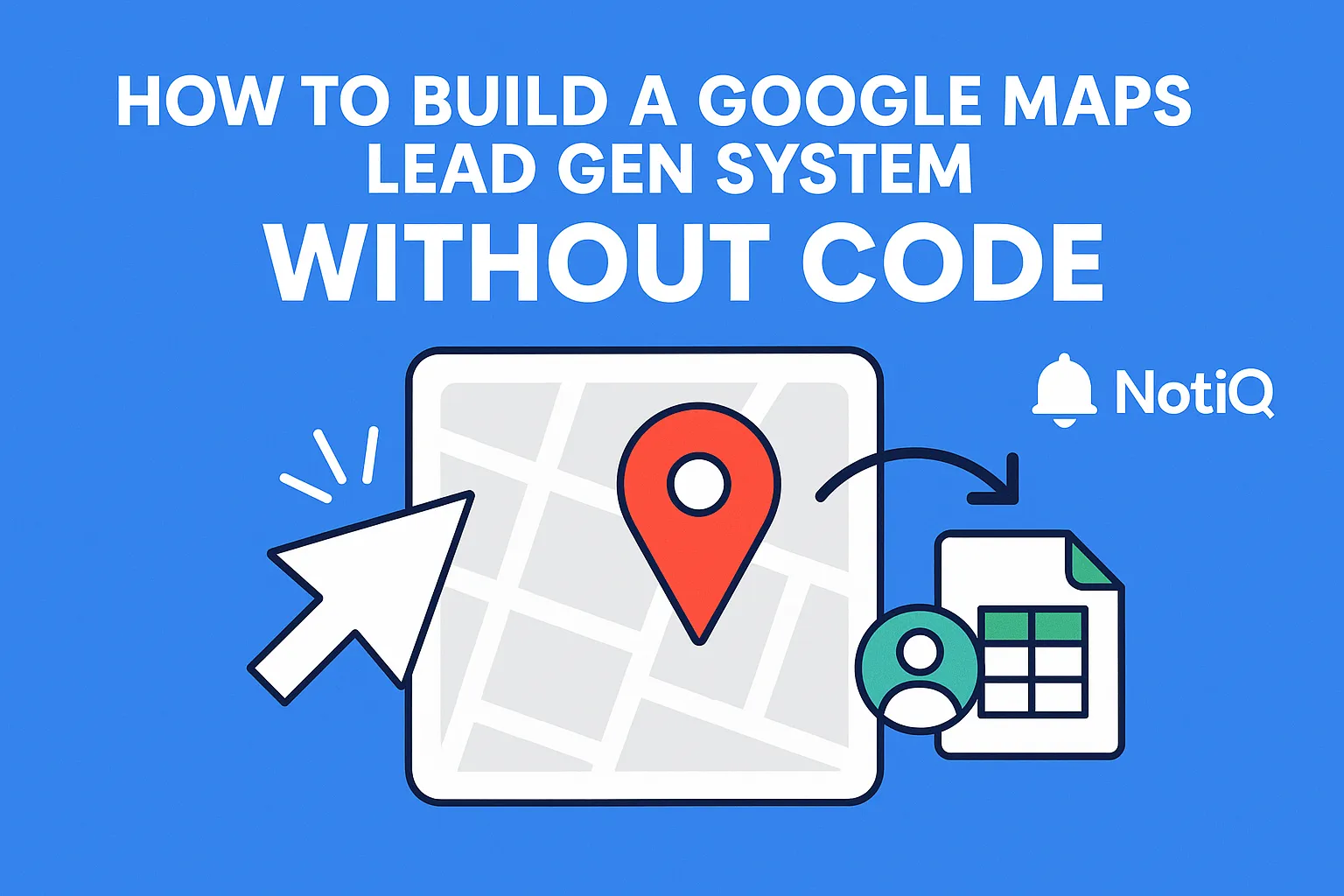
How to Build a Google Maps Lead Gen System Without Technical Skills (No-Code Setup)
Learn how to build a fully automated, no‑code Google Maps lead generation system. This guide shows beginners how to extract, organize, and prepare leads without technical skills.
1. Introduction
If you have ever spent an afternoon manually copying business names, phone numbers, and addresses from Google Maps into a spreadsheet, you know the frustration. It is tedious, prone to human error, and an inefficient use of valuable time. Yet, for many beginners, this manual grind feels like the only way to build a local lead list.
There is a better way. You do not need to be a developer or write a single line of code to automate this process. By leveraging a simple, safe, no-code workflow, you can extract, organize, and enrich Google Maps leads automatically.
This guide covers the essential tools you need, a step-by-step workflow for beginners, and the critical compliance standards required to keep your operation safe. Drawing from NotiQ’s experience teaching thousands of beginners how to build simple automation systems, we will transform your lead generation from a manual chore into a streamlined asset.
2. Why Google Maps Lead Generation Matters for Beginners
Google Maps is arguably the most accurate and up-to-date directory of local businesses in the world. Unlike static databases that rot quickly, Maps reflects real-time changes in the market. It offers accurate categories, verified locations, and niche-specific data that is invaluable for B2B service providers, agencies, and freelancers.
For beginners, however, accessing this "goldmine" often leads to significant pain points. Manual copy-pasting creates friction, confusion, and massive time loss. You might spend five hours building a list of 50 prospects, only to realize half the data is formatted incorrectly.
No-code workflows solve this by making automation accessible and repeatable. Instead of hiring a developer to build a scraper, you can use visual tools to gather public data efficiently. This shifts your focus from data entry to strategy and outreach.
Understanding the shift from manual labor to strategic automation is crucial. As we explore in our guide on the evolution of outreach, modern prospecting requires speed and precision—two things manual copying simply cannot provide.
3. The No-Code Tools You Need to Extract and Organize Business Data
To build this system, you need a stack of beginner-safe tools. You do not need complex servers or Python scripts. The modern no-code ecosystem relies on browser-based extensions and cloud automation platforms.
Here is the basic toolkit:
1. Browser-Based Extractors: These extensions "read" the public information on your screen (like business name and website) and structure it into a table.
2. Spreadsheet/Database: Google Sheets or Airtable to store and clean the data.
3. Automation Helpers: Tools that connect your extractor to your spreadsheet automatically.
Recommended Workflow Checklist:
1. Browse: Navigate to Google Maps.
2. Extract: Run the no-code tool.
3. Clean: Standardize the data in your sheet.
4. Organize: Segment by industry or location.
Industry-recognized solutions like Bardeen,Phantombuster, and Apollo have democratized this process, offering visual interfaces that replace command-line coding.
Choosing a Beginner-Friendly Extractor
When selecting a tool, prioritize ease of setup and transparency. A good beginner tool should:
• Offer a "point-and-click" interface.
• Clearly show you what data is being collected.
• Provide simple export options (CSV or direct to Google Sheets).
Avoid overly technical scrapers that require proxy management or complex rotation settings unless you have advanced experience. The goal is "google maps scraping without code," not learning network engineering.
Where NotiQ Fits Into the Workflow
While extractors gather data, you need a "brain" to manage the process. This is where a workflow orchestrator fits in. An orchestrator ensures that once data is found, it moves seamlessly to your CRM or outreach tool without you moving files manually.
At[NotiQ](/), we focus on this orchestration layer. For beginners, the key to success is repeatability. A system that works once is luck; a system that works every week is a business asset. NotiQ helps you monitor these no-code outreach systems to ensure they run smoothly and consistently.
4. Step-by-Step Workflow to Automate Google Maps Prospecting
Below is an end-to-end walkthrough for building your first automated maps prospecting engine. We will use a hypothetical example: finding "Specialty Coffee Shops in Austin, Texas."
Step 1 — Set Up Your Google Maps Search
The quality of your output depends entirely on the quality of your input.
1. Define the Niche: Be specific. Instead of "Restaurants," search for "Specialty Coffee Roasters."
2. Set the Location: Zoom into the specific area in Austin you want to target.
3. Apply Filters: Use Google Maps filters to select "Top Rated" or "Open Now" if relevant to your offer.
Pro Tip: If you search too broadly, Google Maps limits the results you can see. Zooming in ensures you capture all relevant local businesses.
Step 2 — Run the No-Code Extraction
Once your search results are visible on the screen:
1. Launch Your Tool: Open your chosen browser extension (e.g., Bardeen or a similar extractor).
2. Select the List: The tool should auto-detect the list of businesses on the left-hand panel.
3. Configure Limits: For your first run, limit the extraction to 10 or 20 results to test accuracy.
4. Execute: Click "Extract" or "Scrape." The tool will cycle through the results and pull public data like Name, Address, Website, and Phone Number.
Step 3 — Clean and Organize the Data
Raw data is rarely ready for outreach. Export your results to Google Sheets and perform a quick cleanup:
• Remove Duplicates: Check for businesses listed twice.
• Filter Categories: Remove irrelevant results (e.g., a "Starbucks" if you are targeting independent cafes).
• Standardize Columns: Ensure you have clear headers: `Business Name`, `Website URL`, `Phone`, `Address`.
This "lead organization workflow" prevents embarrassing mistakes later, such as emailing the wrong company name.
Step 4 — Automate Repeat Runs
Lead generation isn't a one-time event. To keep your pipeline full, schedule this workflow.
• Weekly Routine: Set a calendar reminder to run your extraction on new neighborhoods every Monday.
• Delta Checks: If you use advanced tools, configure them to only add new businesses that weren't in your previous lists.
5. How to Stay Compliance‑Safe While Collecting Leads
Compliance is not optional. When automating data collection, you must respect the platform and the law. There is a misconception that "no-code" means "no rules." This is false.
You must only extract publicly available information. This includes data a business intentionally publishes on their Google Maps profile (Name, Address, Public Phone). You must never attempt to access private backend data, login-protected areas, or personal private information not intended for public view.
According to the Google Maps Platform compliance guidelines, developers and users must adhere to strict security and usage policies. While these guidelines primarily address API usage, the principle remains: respect the integrity of the platform.
Boundaries of Ethical Data Collection
Ethical scraping guidelines revolve around three pillars:
1. Publicity: Only collect data that is manifestly public.
2. Rate Limiting: Do not overwhelm the website's servers with thousands of requests per second. No-code tools usually handle this by adding "delays" between actions.
3. Retention: Respect data privacy laws (like GDPR or CCPA) regarding how long you keep data and how you use it.
The OECD report on responsible data collection emphasizes that automated data gathering must balance innovation with respect for third-party rights. Always ensure your use case (lead generation) aligns with legitimate business interest.
Robots.txt & Public Data Considerations
The`robots.txt`file is a standard used by websites to tell "crawlers" which pages they can or cannot access. While Google Maps is a complex application, the general ethical standard for web automation is to respect these directives where applicable.
A recent arXiv robots.txt compliance study highlights that while many bots ignore these files, ethical data practitioners strictly adhere to them to maintain the health of the open web. For a beginner, simply using tools that simulate human browsing speed is the best way to remain compliant and respectful.
6. Enriching and Preparing Your Leads for Outreach
"Enrichment" is the process of adding missing information to your lead list. Google Maps often provides a general phone number, but rarely a direct email for a decision-maker.
Add Missing Contacts
To turn a Maps lead into a prospect, you need contact info.
• Website Visit: Use the URL from Maps to visit the business website.
• About Us Page: Look for specific names of owners or managers.
• Enrichment Tools: Platforms like Apollo are industry standards for taking a business domain (e.g., `cafe-austin.com`) and finding associated professional email addresses.
Tag & Segment Your Leads
Don't treat all leads the same. Segment them in your spreadsheet:
• Location: "Austin - Downtown" vs. "Austin - North".
• Category: "Roaster" vs. "Bakery".
• Size: Single location vs. Multi-location.
Export Into Your Outreach Tool
Once your CSV is clean and enriched, it is time to sync it with your outreach platform. This is the bridge between data collection and actual conversation. As noted in the evolution of outreach, the transition from raw data to personalized communication is where the real value lies. Ensure your columns map correctly (e.g.,`First Name`maps to`{{first_name}}`) to enable personalization at scale.
7. Case Studies & Real‑World Examples
Case Study 1 — Freelancer Targeting Local Businesses
The Scenario: Sarah, a freelance social media manager, wanted to find local gyms in Chicago. The Old Way: She spent her weekends driving around or Googling "gyms near me," copying numbers into a notebook. The No-Code Workflow: She set up a browser extractor to pull all "Fitness Centers" in specific Chicago zip codes. The Result: She generated a list of 200 local gyms in 15 minutes, enriched them with owner names using LinkedIn, and started her outreach the same afternoon.
Case Study 2 — Small Agency Scaling Prospecting
The Scenario: A web design agency needed to target dental clinics across the UK. The Workflow: They used a cloud-based automation to run searches for "Dentist" in 50 different cities. They used NotiQ to monitor the workflow's success and organize the data streams. The Result: The agency built a consistent pipeline of 500+ fresh leads per month, allowing their sales team to focus entirely on closing rather than prospecting.
8. Tools & Resources for a Smooth No‑Code Workflow
To get started, here is your essential resource list:
• Extraction: Bardeen (Browser), Phantombuster (Cloud).
• Storage: Google Sheets or Airtable.
• Enrichment: Apollo or Hunter.io.
• Orchestration: NotiQ.
Downloadable Checklist for Beginners:
1. [ ] Define target niche and location.
2. [ ] Run test extraction (10 results).
3. [ ] Verify data accuracy (check 3 random rows).
4. [ ] Run full extraction.
5. [ ] Clean duplicates.
6. [ ] Enrich with emails.
7. [ ] Upload to outreach tool.
9. Future Trends & Expert Predictions
The future of "no-code google maps lead generation" is moving toward AI-assisted context. Soon, tools won't just extract the address; they will analyze the business's photos and reviews to tell youwhythey need your service.
We also predict a shift toward Compliance-First Design. As platforms tighten security, the only tools that will survive are those that prioritize ethical scraping guidelines and human-like browsing behavior. Competitors ignoring compliance are building on quicksand; building a compliant workflow now protects your business later.
10. Conclusion
Building a Google Maps lead generation system does not require a computer science degree. It requires the right mindset and the right no-code tools. By following this workflow, you move from the chaos of manual copy-pasting to the clarity of automated prospecting.
Remember: Keep it simple, keep it compliant, and focus on consistency. The goal isn't just data—it's starting conversations with the right businesses.
Ready to organize your new automation empire?Try building your first workflow with NotiQ and see how easy it is to manage your lead generation systems.
Frequently Asked Questions
- Can you collect Google Maps data without coding?
- Yes. Using browser extensions and visual automation platforms, you can extract public data from Google Maps just by clicking buttons. These tools simulate human browsing to "read" and save the data for you.
- Is Google Maps scraping legal?
- Extracting publicly available data is generally considered legal in many jurisdictions, provided you do not access password-protected data, infringe on copyright, or violate the platform's Terms of Service regarding automated access. Always consult legal counsel and adhere to ethical scraping guidelines.
- How often should I refresh my leads?
- We recommend refreshing your local lead lists monthly. Local businesses open, close, and change contact info frequently. A monthly cadence ensures your outreach data remains accurate.
- What’s the easiest workflow for complete beginners?
- The easiest workflow is: 1. Use a Chrome extension extractor. 2. Search a specific niche on Maps. 3. Click "Extract" to save to a CSV. 4. Import that CSV into Google Sheets.
- How do I enrich leads after extraction?
- After extracting the business website from Maps, use an enrichment tool like Apollo or Hunter. These tools take the website domain and search for public professional email addresses associated with that business.
Continue Reading
More articles you might find useful
How to Find Businesses With Weak Google Maps Descriptions
Learn how to find businesses with weak Google Maps descriptions and turn visible GBP gaps into qualified local SEO leads. This guide covers audit criteria, scoring, and outreach angles you can use at scale.
Read the article →
Google Maps Lead Generation for Pest Control Companies
A beginner-friendly playbook for turning Google Maps visibility into more pest control leads. Learn how to improve rankings, build reviews, and convert local searches into booked jobs.
Read the article →
How to Build Lead Lists From Businesses Inside Shopping Centers
Learn how to build accurate prospect lists from businesses inside malls using tenant directories, place data, validation, and deduplication. This guide shows a center-first workflow for cleaner retail outreach.
Read the article →Popular industry lead playbooks
Maps search examples and niche outreach for the verticals teams prospect most.