Technology
The Fastest Way to Identify Decision-Makers Using Only a Google Maps Listing
A practical guide showing how to uncover decision-makers using only Google Maps, interpret ownership signals, and verify leads fast using free research methods.
1. Introduction
Most beginners in sales and lead generation waste 20–40 minutes per lead trying to guess who actually runs a business. They scour generic "info@" email addresses or get blocked by gatekeepers, never realizing that the most accurate ownership clues are often hiding in plain sight.
Google Maps is not just a navigation tool; it is a repository of verified business data. For those who know where to look, a standard map listing exposes overlooked signals that point directly to the decision-maker.
Identifying the correct decision-maker is the single most important factor in outreach success. If you pitch a manager who has no buying power, you waste time. If you pitch the owner directly, your conversion rates skyrocket.
This article outlines a unique, practical, and completely free workflow for identifying decision-makers using Google Maps. Backed by NotiQ’s 10+ years of hands-on experience building manual and automated research systems, we will move beyond basic searching. You will learn to read the subtle metadata, response patterns, and visual cues that reveal who holds the keys to the business.
2. Why Google Maps Is a Reliable Source for Identifying Decision-Makers
Many prospectors rely on expensive databases like ZoomInfo or Apollo. While these tools are powerful, they often lack data on small-to-mid-sized local businesses (SMBs). Google Maps acts as the "front door" for local business authority signals because it requires a verification process that usually involves the business owner directly.
Unlike scraped databases that may be outdated, Google Maps data is dynamic. It reflects how the business presents itselfright now. When a business cares about its reputation, the person managing that reputation is often the owner or a high-level decision-maker. This makes Google Maps a goldmine for "google maps lead generation" if you know how to interpret the public data.
How Google Business Profiles Are Managed and Why It Matters
To appear on Google Maps with full functionality, a business must claim its Google Business Profile (GBP). Google’s verification protocols are strict, often requiring postcards mailed to the physical address or video verification by someone on-site.
Because of this friction, the person managing the profile is rarely a low-level employee or an outsourced agency (unless the company is very large). For most SMBs, the person responding to reviews, updating hours, and posting photos is the owner, the founder, or the general manager.
When you see activity on a profile, you are seeing the digital footprint of a decision-maker. By analyzing "google business profile signals," such as the tone of voice in responses or specific syntax used in updates, you can often determine if you are looking at an owner-operated establishment.
The Accuracy and Limitations of Google Maps Data
It is important to manage expectations: Google Maps will rarely list a field labeled "Owner: John Doe." Instead, it provides metadata that reveals clues.
The accuracy of these "local business authority signals" is high because they are self-reported. If a review response is signed "Mike," it is highly probable that Mike has administrative access to that Google account.
However, there are limitations. Unclaimed profiles (indicated by a "Claim this business" link) will not have owner-generated data. Additionally, generic responses (e.g., "Thank you for your business") provide fewer clues than personalized ones. Despite these limitations, this method remains one of the most effective free ways to "identify decision makers" for local businesses.
3. The Step-by-Step Workflow to Uncover Ownership Signals
This "beginner Google Maps prospecting workflow" is designed to be linear. Follow these steps in order to filter down from a generic business listing to a specific name.
Step 1 — Scan Review Responses for Owner Names
The most direct way to "find decision makers" on Maps is to read the owner's responses to reviews.
1. Navigate to the Reviews tab on the Google Maps listing.
2. Sort by Newest or Lowest (owners are more likely to respond personally to negative feedback to resolve issues).
3. Look for the "Response from the owner" section beneath a review.
What to look for:
• Sign-offs: Many owners treat review responses like emails. Look for signatures like "Thanks, - Sarah" or "Best, Dr. Smith."
• First-person language: "I opened this gym to help people..." vs. "The management team..."
• Consistency: If you see "Thanks, Tom" on five different reviews over six months, Tom is likely the owner or the active manager.
According to Google’s review management policies, only verified managers can respond. If a name appears here, that person has decision-making power.
Step 2 — Check the “From the Business” Description
The "From the Business" section is a text block where the company describes its history and services.
Where to find it:
• Desktop: Scroll down on the knowledge panel (left sidebar) until you see the text description.
• Mobile: Tap the "About" tab.
Owners typically write this section themselves, especially when the profile is first created. Look for "google maps business description" clues such as:
• "Founded by Jane Doe in 2010..."
• "Family-owned and operated by the Miller brothers..."
• "I started this bakery because..."
This section is often overlooked by automated scrapers but is rich in context for human researchers.
Step 3 — Analyze Photos for Owner Clues
Visual data is a powerful differentiator in "google maps research."
1. Click on the Photos tab.
2. Look for a tab or filter labeled "By Owner" (this separates official uploads from customer uploads).
3. Scroll through the images.
Clues to watch for:
• Staff Photos: Pictures of the team often include captions or name tags.
• Certifications: Owners often upload photos of their business license, awards, or certificates hanging on the wall, which almost always bear the owner's full name.
• Vehicles: For service businesses (HVAC, plumbing), trucks often have the owner's name or direct mobile number stenciled on the door.
Step 4 — Look at Business Category and Metadata
The specific category a business chooses can hint at its structure. A business listed as "Corporate Office" will have a different hierarchy than one listed as "Sole Proprietor" or a niche service.
Furthermore, look for "google maps metadata" attributes. In some regions, Google highlights attributes like "Women-owned," "Veteran-owned," or "Black-owned." While this doesn't give you a name immediately, it narrows your search parameters significantly when you move to cross-verification.
Also, pay attention to the business name itself. "Local business prospecting" is easier when the name is "Steve’s Auto Repair" rather than "City Auto Repair."
Step 5 — Use Website Links to Surface Ownership Signals
Google Maps is the starting point, but the linked website is the verification engine. Use the "Website" button on the Maps listing to jump directly to their digital HQ.
Where to click immediately:
• About Us: Look for "Our Story" or "Meet the Team."
• Footer: Sometimes the copyright text says "© 2023 [Owner Name] Holdings."
• URL Structure: Occasionally, the domain registration or URL slugs contain names.
Once you have identified a potential name via Maps and the website, you need a system to store and act on this data. [NotiQ](/)helps automate and enrich this workflow, turning these manual discoveries into actionable prospect lists.
4. How to Cross‑Verify Decision-Makers Quickly Using Free Methods
Finding a name like "Sarah" in a review response is a strong lead, but it isn't proof. You need to verify that Sarah is the owner, not just the social media manager. Here is "how to verify business owners using Google Maps" data without spending money.
Step 1 — Google Search: “[Business Name] + owner”
Perform a specific search query to validate your findings.
• Query: `"[Business Name]" + owner`
• Query: `"[Business Name]" + "Sarah"` (if you found a first name)
• Query: `"[Business Name]" + interview`
This often surfaces local news articles, podcast interviews, or chamber of commerce listings where the owner is explicitly named. This is the fastest way to "find business owner online."
Step 2 — LinkedIn Cross‑Reference (No Tools Required)
You do not need a premium Navigator account to do a basic "linkedin business owner search."
1. Go to LinkedIn.
2. Search for the company name and select "People."
3. Filter by the location found on Google Maps.
4. Scan the titles for: Owner, Founder, President, Principal, or Managing Director.
If the "Sarah" you found on Maps matches "Sarah Jenkins, Owner" on LinkedIn, your research is complete.
Step 3 — Check Facebook Pages or Instagram Business Accounts
Local businesses are often more active on Facebook and Instagram than LinkedIn.
• Facebook: Check the "Page Transparency" section or the "About" > "Team Members" section.
• Instagram: Check the Bio or "Highlights." Owners often post "Introduction" videos or photos of themselves working.
This "business owner lookup free" method is particularly effective for retail, hospitality, and trade businesses.
Step 4 — Verify With Public Records (Optional but Free)
For absolute certainty, especially with high-value leads, consult government "business entity lookup" databases. These are the official records of "ownership verification."
• California: Use the California Secretary of State business entity records to find the registered agent or officer.
• Maryland: Use the Maryland business ownership lookup guidance for entity checks.
• Global/General: For a broader search, check OpenCorporates corporate data, which aggregates open public records from multiple jurisdictions.
5. When Manual Research Isn’t Enough (Optional Tool Enhancements)
While the free workflow above is powerful, it is manual. As you scale your "contact discovery" efforts, you may hit bottlenecks—specifically regarding email addresses and phone numbers that aren't on public listings.
When to Add Tools Like Hunter, Apollo, or Clay
You should consider "ai enrichment tools" when:
1. Volume is high: You need to process 50+ leads a day.
2. Contact info is hidden: You have the name (Sarah Jenkins) but no email address.
3. Complex structures: The business is a franchise or has multiple locations.
Tools like "Hunter email discovery for Google Maps" or "Apollo decision maker enrichment" can take the name and domain you found and predict the email address. However, relyingonlyon these tools often results in lower quality data for local businesses than the manual checks described above.
How NotiQ Streamlines the Whole Workflow (Optional Mention)
The ideal approach combines the accuracy of manual signals with the speed of automation.
[NotiQ](/)serves as the AI workflow orchestrator for scaling this process. Instead of manually checking every review and photo, NotiQ can monitor and aggregate these signals, helping you build a "notiq prospecting workflow" that identifies decision-makers and changes in business status automatically. This allows you to leverage 10+ years of prospecting expertise without the manual grind.
6. Conclusion
Most salespeople overlook Google Maps because they think it is just for directions. In reality, it is a database rich with "google maps lead generation" potential. By analyzing review responses, business descriptions, photos, and metadata, you can uncover "find decision makers" clues that expensive databases often miss.
You now have a reliable, free workflow:
1. Identify the business on Maps.
2. Hunt for names in reviews and photos.
3. Cross-verify via LinkedIn or public records.
This method ensures you are reaching out to the person who actually signs the checks. For those ready to move beyond manual checking and scale this level of accuracy, exploring tools like NotiQ is the next logical step in your prospecting evolution.
Frequently Asked Questions
- How do I find the decision‑maker from a Google Maps listing?
- "How to find the decision-maker from a Google Maps listing" involves checking the 'Reviews' section for owner responses, looking at the 'From the Business' description for founder details, and analyzing 'By Owner' photos for certificates or staff introductions.
- Can I find a business email from Google Maps?
- Google Maps rarely lists direct email addresses to prevent spam. It is best used for "contact discovery" (finding the name and website). You will typically need to visit the linked website or use enrichment tools to find the specific email address associated with the decision-maker you identified.
- How do beginners do B2B research using Google Maps?
- "Google maps research for beginners" starts with searching for a specific niche in a target area (e.g., "Plumbers in Austin"). From there, beginners should filter for businesses with active profiles (recent reviews/posts) and use the step-by-step workflow above to identify the owner before reaching out.
- How accurate is Google Maps for decision‑maker identification?
- "Google maps ownership signals accuracy" is generally high because the data is self-reported by the business profile manager. However, it requires cross-verification (via LinkedIn or the company website) to confirm that the person responding to reviews is the owner and not just a marketing manager.
- What information on Google Maps helps identify business owners?
- The key "google maps decision maker signals" include the signature on review responses, the "From the Business" story section, photos uploaded to the "By Owner" tab, and specific business category metadata.
Continue Reading
More articles you might find useful
How to Find Businesses With Weak Google Maps Descriptions
Learn how to find businesses with weak Google Maps descriptions and turn visible GBP gaps into qualified local SEO leads. This guide covers audit criteria, scoring, and outreach angles you can use at scale.
Read the article →
Google Maps Lead Generation for Pest Control Companies
A beginner-friendly playbook for turning Google Maps visibility into more pest control leads. Learn how to improve rankings, build reviews, and convert local searches into booked jobs.
Read the article →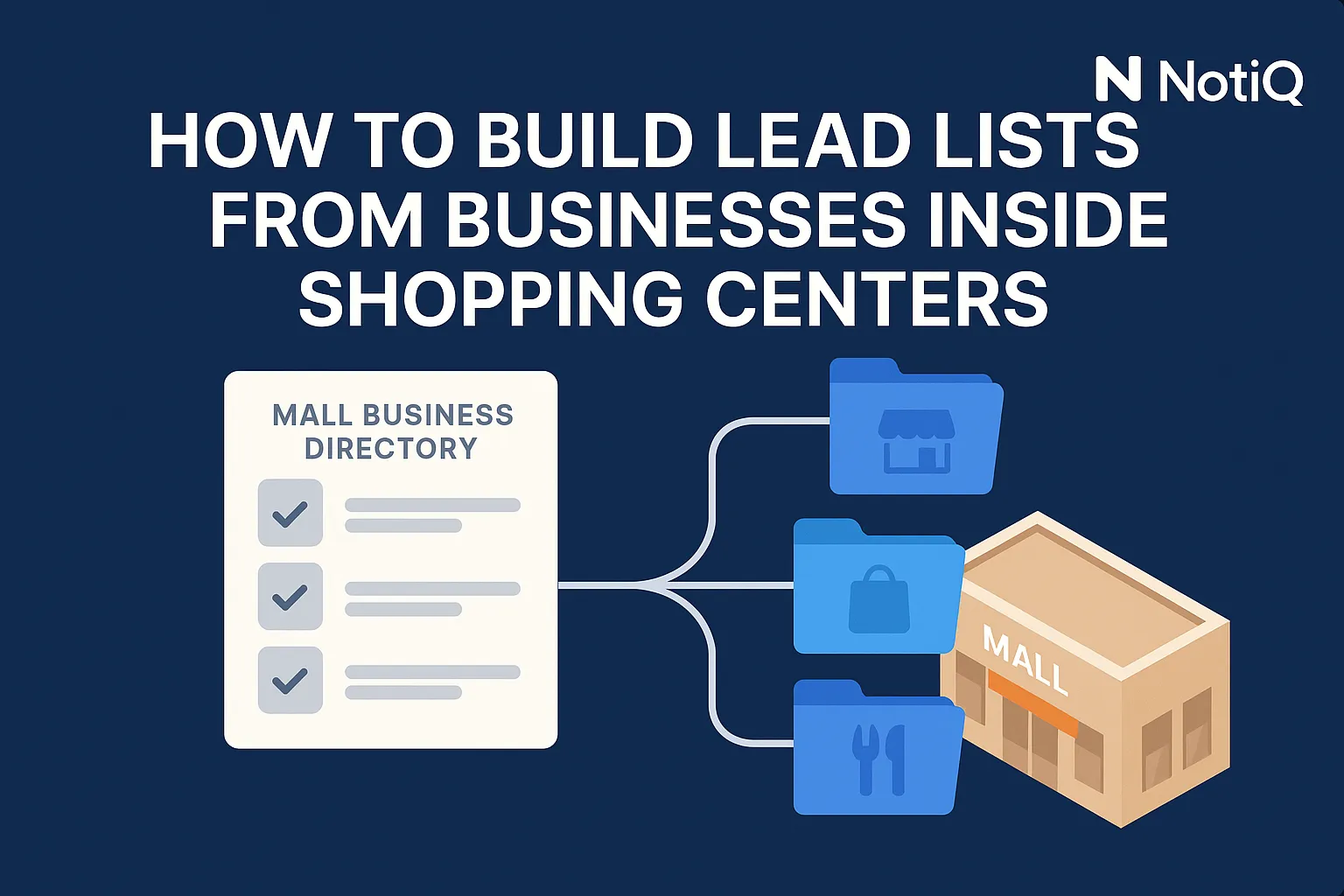
How to Build Lead Lists From Businesses Inside Shopping Centers
Learn how to build accurate prospect lists from businesses inside malls using tenant directories, place data, validation, and deduplication. This guide shows a center-first workflow for cleaner retail outreach.
Read the article →Popular industry lead playbooks
Maps search examples and niche outreach for the verticals teams prospect most.